About Wrike
Wrike is a collaborative work management platform (Similar platforms: Monday.com, Asana, Clickup). While the desktop focuses on a full fledged experience, the mobile app acts as a companion app enabling collaboration on the go.
Overview
45% of Users on Wrike receive more than 6 and upto 50 notifications a day. In a sea of notifications, it becomes difficult to identify and take action on the most urgent and important ones quickly. The new priority inbox simplifies this process for the users by categorising all notifications into ‘Urgent’, ‘Important’ and ‘Others’ buckets based on the notification context. This significantly reduces the cognitive load and stress on users.
Imapact
My Role
I designed the the very first AI feature for Wrike Mobile from the ground up. This involved:
Carefully engineering the prompt over multiple iteration and testing cycles,
Prototyping and testing different experiences with users.
Team
1x Product Designer
1x Product Manager
1x UX Writer
4x Engineers
Problem Statement
A chronological inbox makes people scan, not decide. For ~45% of users getting 6-50 notifications/day, urgent approvals and blockers are routinely buried, raising the risk of missed deadlines and stalled work.
Pain point 1: Notification overload
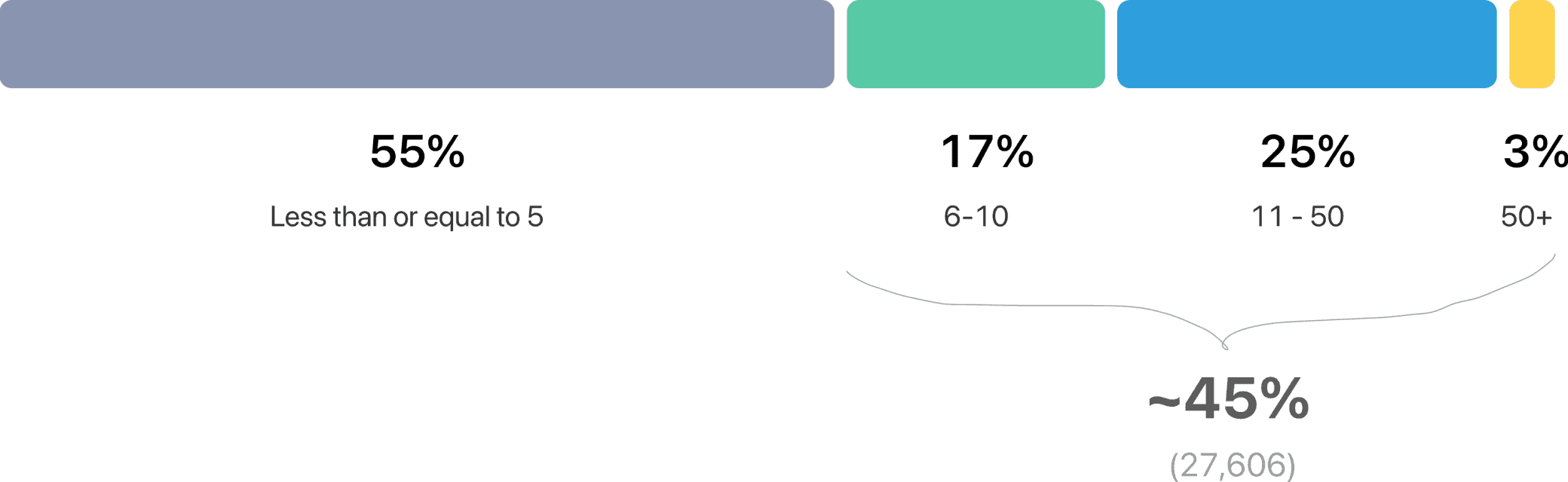
A meaningful segment of users (45%) receives high notification volume. This leads to
Important updates getting buried.
Users missing critical tasks or deadlines.
Increasing stress and cognitive load.
Pain point 2: Difficulty in Prioritizing Actions
Notifications are often presented in a flat, chronological list, making it hard to:
Distinguish urgent from non-urgent items.
Identify which tasks require immediate attention versus those that can wait.
Spot high-impact work among routine updates.
The Process
Prompt Engineering
Before we moved onto design, the first step was to figure out if and how the notification prioritisation would work. Initially, I created a custom GPT which I used to test out the prompt with a sample dataset.
Later, the prompt evolved through multiple iterations and testing; tweaking the input rules, data, context as well as the output structure and quality. Collaborating with the PMs, BEs & QAs to define the expected output, data to be used, etc. were some of the most exciting experiences of this project.
*The below interactive element is for illustrative purpose only, actual prompt will vary based on the need
Built with cursor, hosted on Vercel <3
Learnings
Build iteratively while testing with realistic data from the start.
Clearly define the input, output structures along with relevant context for the best output.
Provide specific scenario handling rules and examples to handle a variety of use cases.
Goes without saying but easy to miss: ensure the prompt doesn’t have conflicting or open to interpretation kinda rules to avoid a bad output.
Ask the AI to use specific input json objects in the output to avoid hallucinations.
Designs
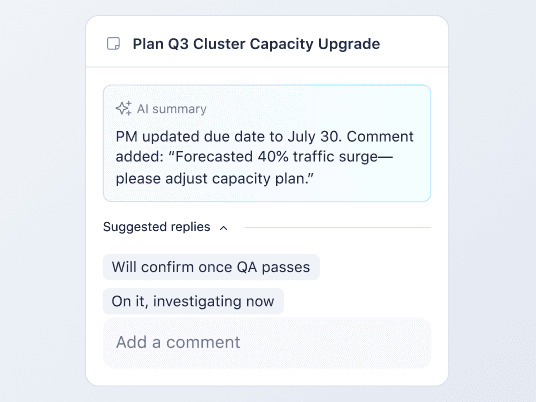
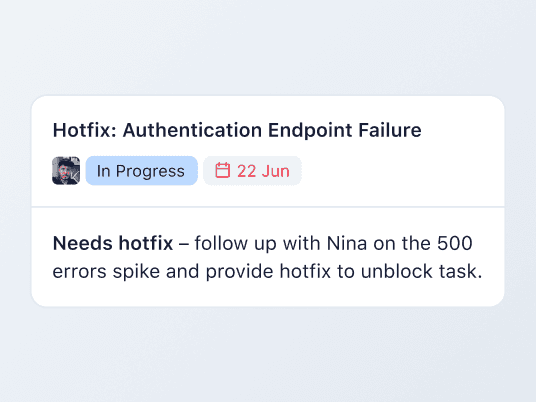
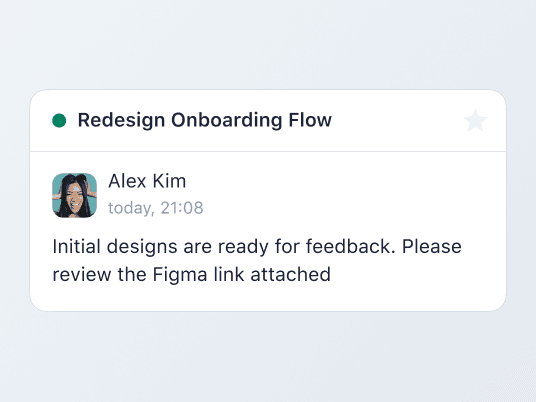
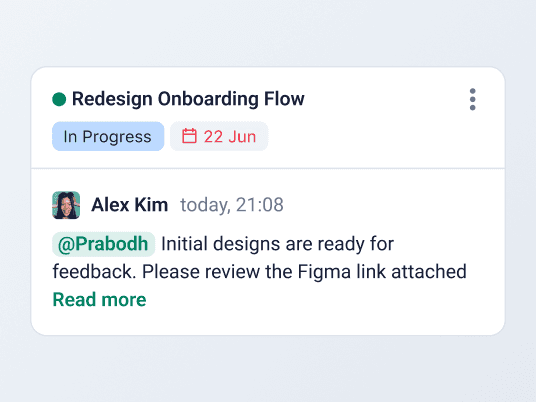
Notification card improvements
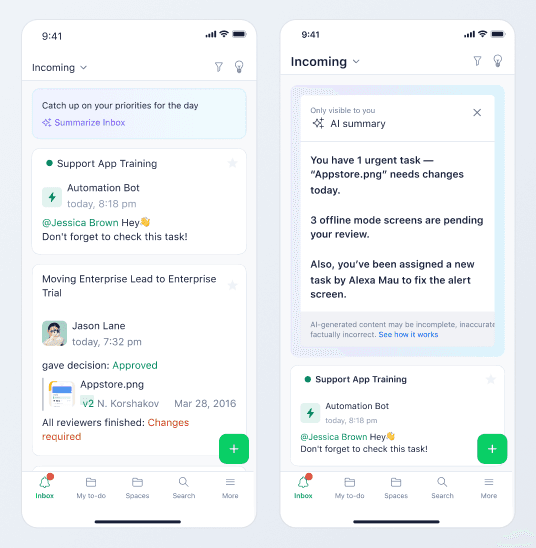
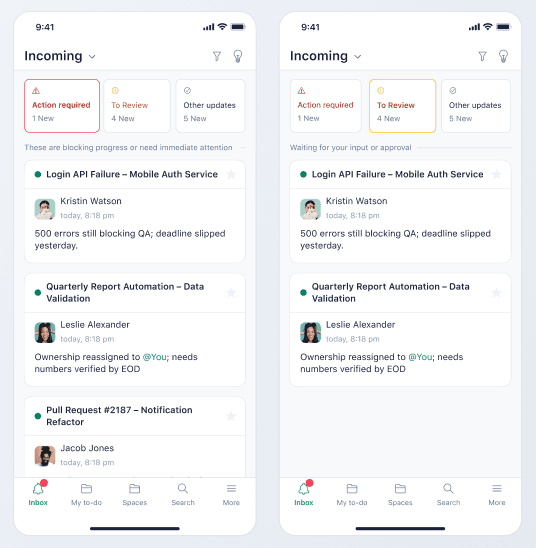
Solving for mode of prioritization
Solution
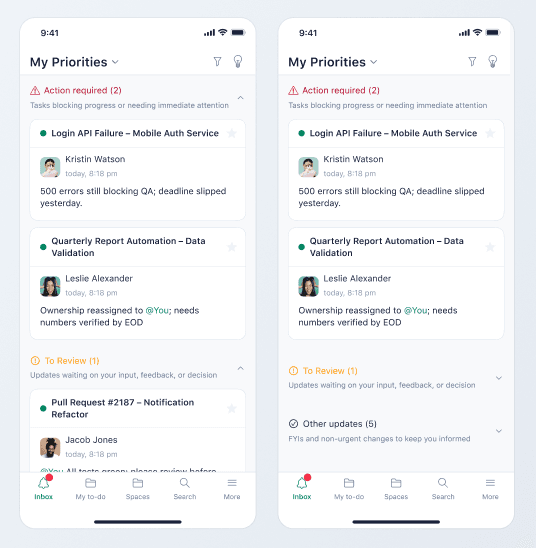
The priority inbox provides users with a simple categorised list of notifications which helps shift the focus from overwhelm to quick action.
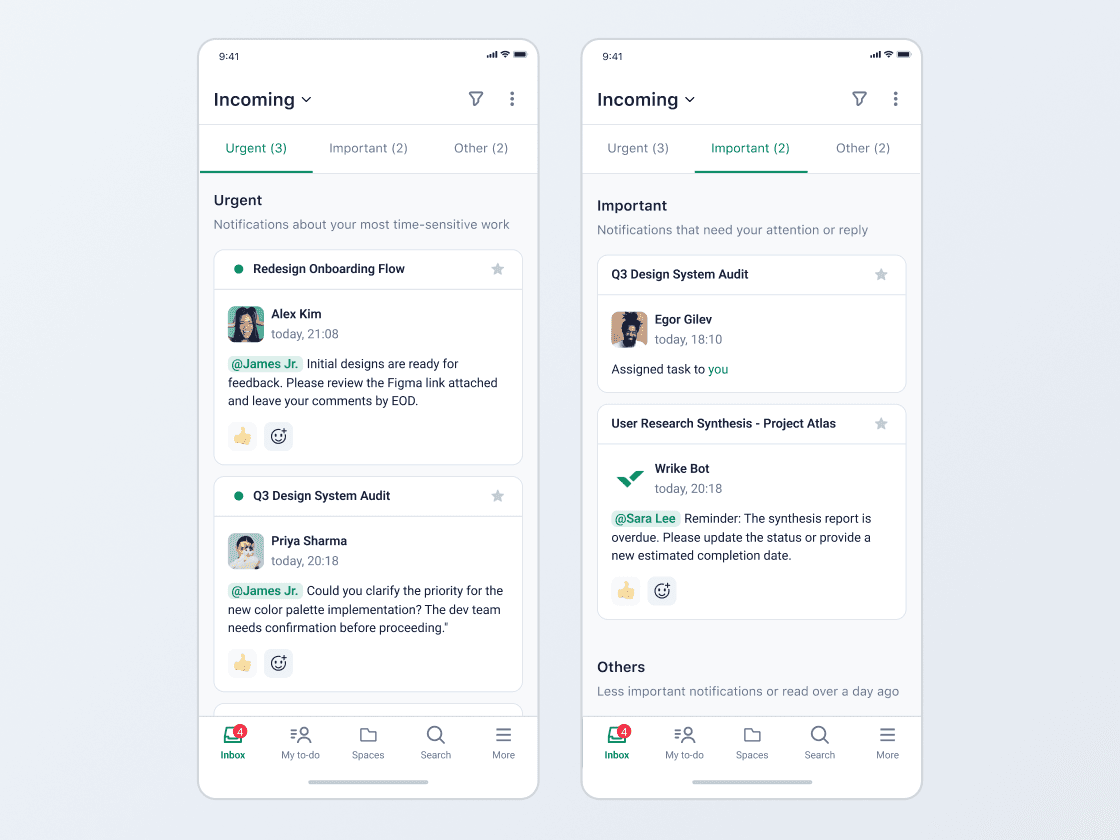
Anchors
The inbox provides anchor tabs to help users Jump between the required sections as well as indicate the count for each category.
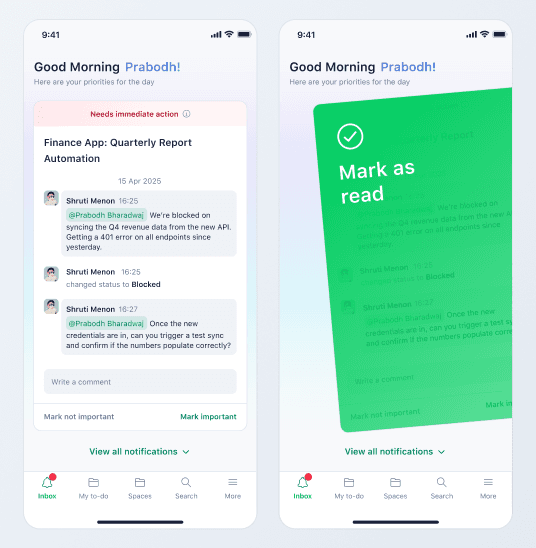
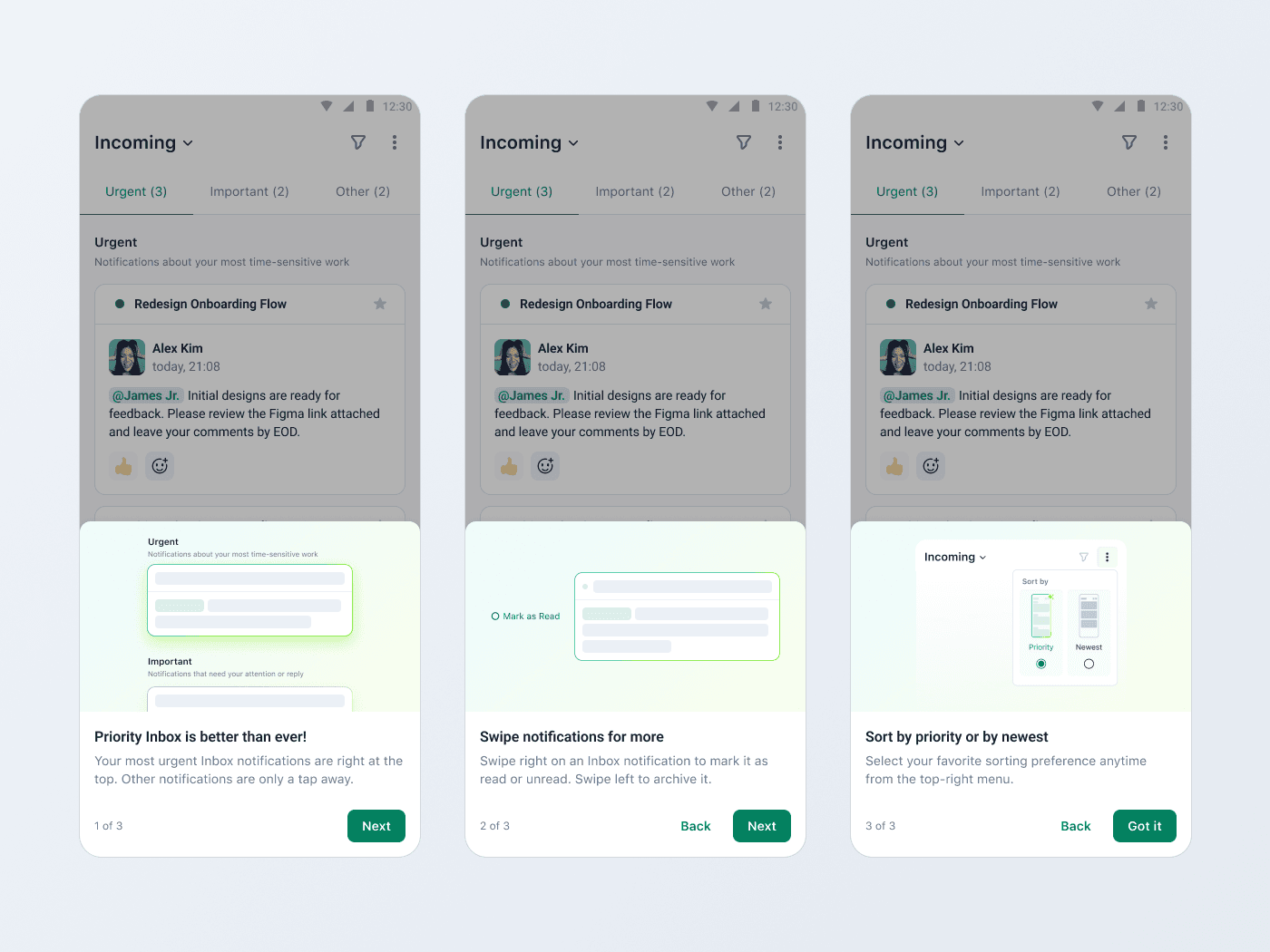
Swipe gestures
Each notification can be swiped left to mark as read / unread and swiped right to archive it. This helps users clear items off their list as they complete them.
Onboarding
We added an onboarding flow with 3 steps to introduce the feature, the gestures and how to switch between the priority and newest sorting modes
What’s Next?
#1 Better priority handling
The ability to move notifications between priority categories would provide users more control and also help us understand where our prioritisation is failing.
#2 Continuous prompt improvement / ML model considerations
We have identified certain scenarios where the AI isn’t able to provide accurate results. The next step is to identify where we can leverage ML models to filter and provide a more focused list to the AI along with prompt improvements.
#3 Personalisation
Enabling users to set custom rules for prioritisation through an open input field.
#4 Scaling the scope of prioritisation
Few of our users indicated that they have certain system & custom fields which they use to prioritise tasks rather than solely relying on notifications (which rely on collaboration from team members). The next step here would be to help prioritise user’s tasks and not just their notifications.
and more...